Advanced 📚
Getting Started 👋
Chatting with Alice
At first glance, chatting in the Alice app is simple and works the same way as ChatGPT, Gemini, or Claude. However, the reality is much more interesting.
"Personalized ChatGPT" is a good way to describe what the Alice app is at its core. At first glance, it looks like any other chat app, but the magic happens when you switch between assistants and activate their skills, called "Skills". But let's start from the beginning.
Basics
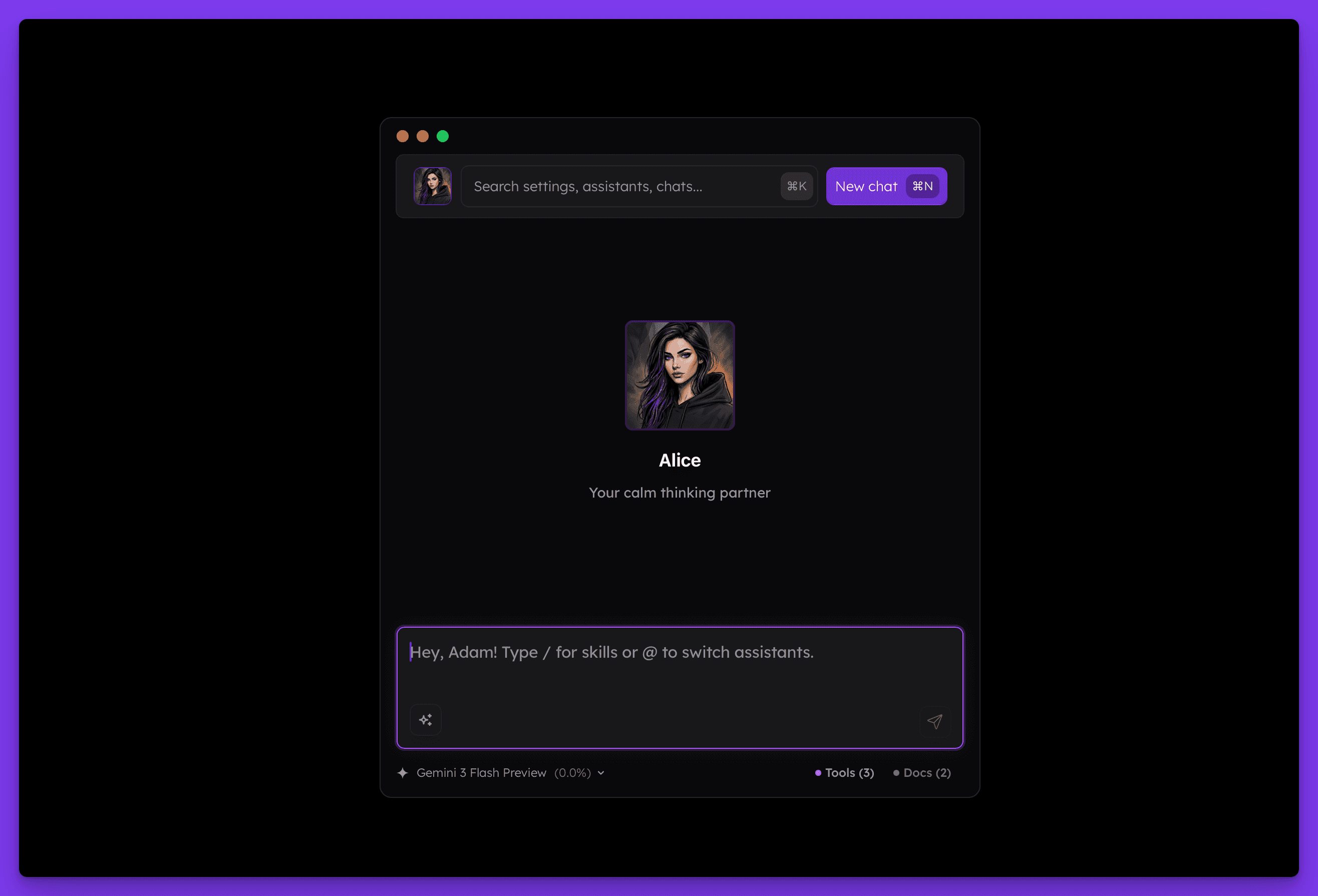
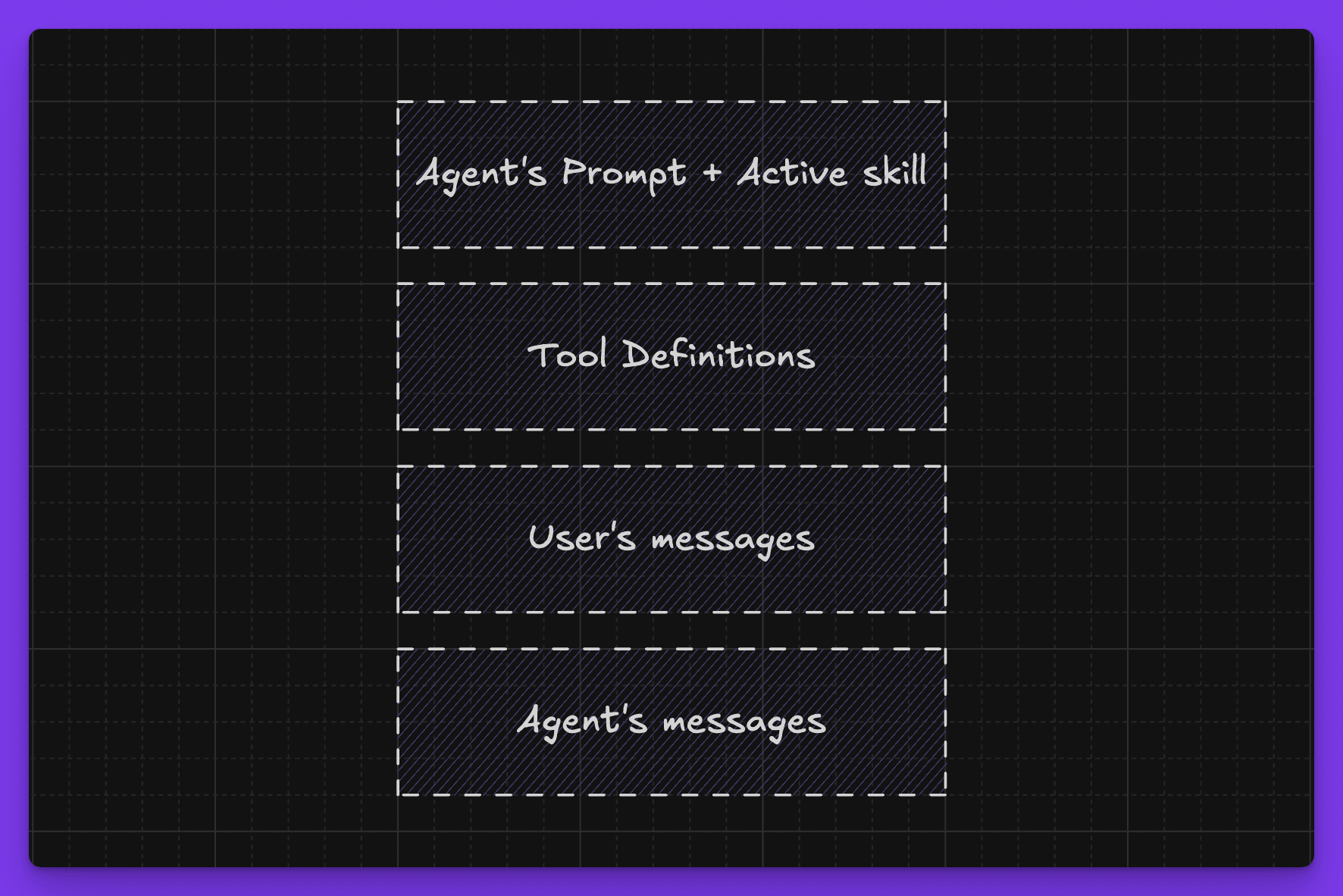
Sending a message provides a clear, generated answer. However, when you send a message, Alice builds context from the active agent's system instructions, tools, and enabled skills. Based on this context, the currently active model generates a result. When you send another message, the process restarts, so the way the model responds may change between turns. You can even change the model you are working with.
Also for the first message, an additional request will be made to provide the name of the conversation as it appears in the chat history. To start a new chat you can press Command + N (or Control + N on Windows) or by click the New Chat button.
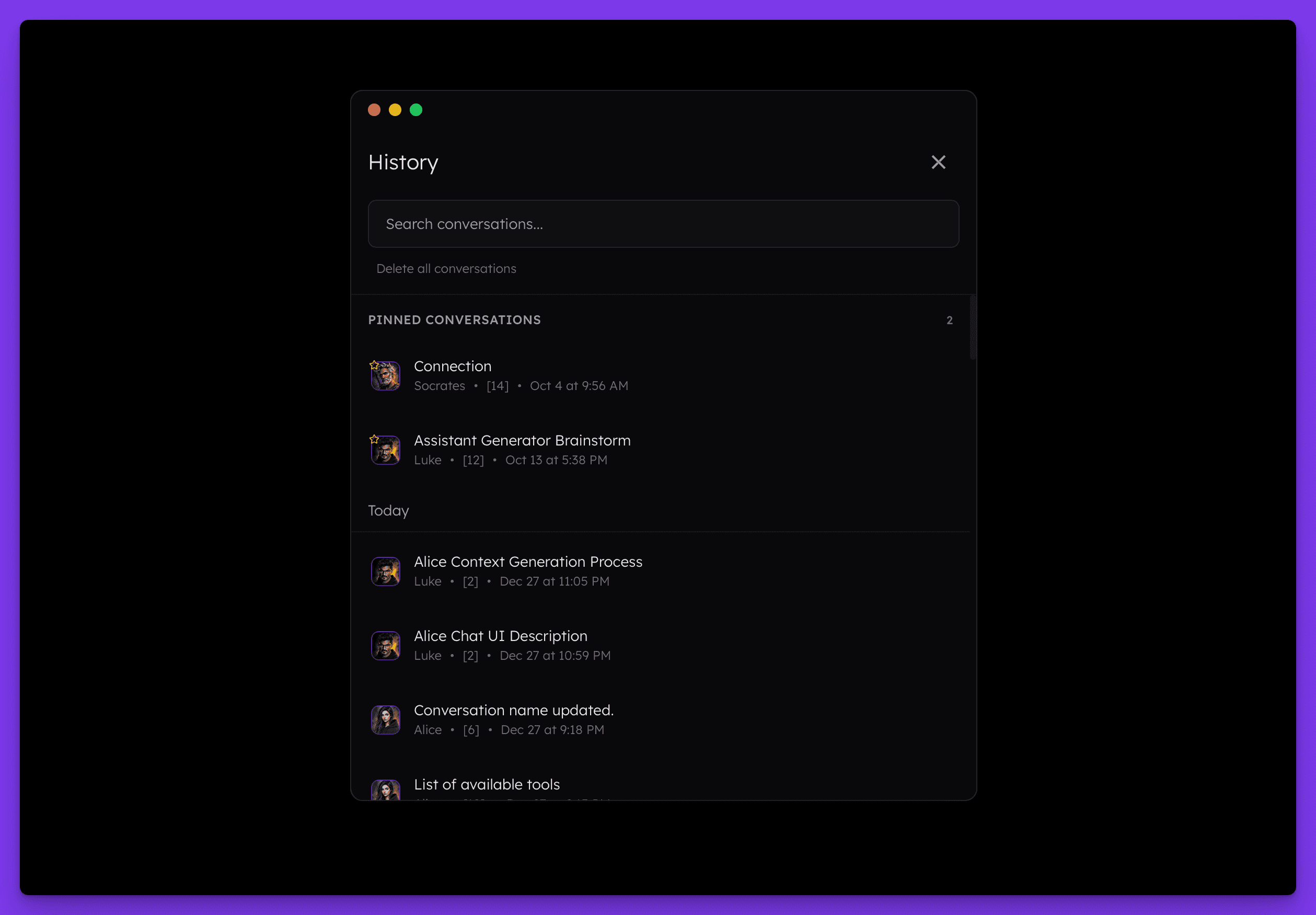
All your conversations are stored locally on your device until you choose to delete them. You can access them through the History panel by pressing Command + Shift + H (or Control + Shift + H). If you wish, you can pin specific threads to the top of the list. You can also search through threads, including both titles and their content, using the available search box.
WARNING: If you decide to remove a conversation, it will be permanently deleted, and neither I, Greg, nor Adam will be able to restore it.
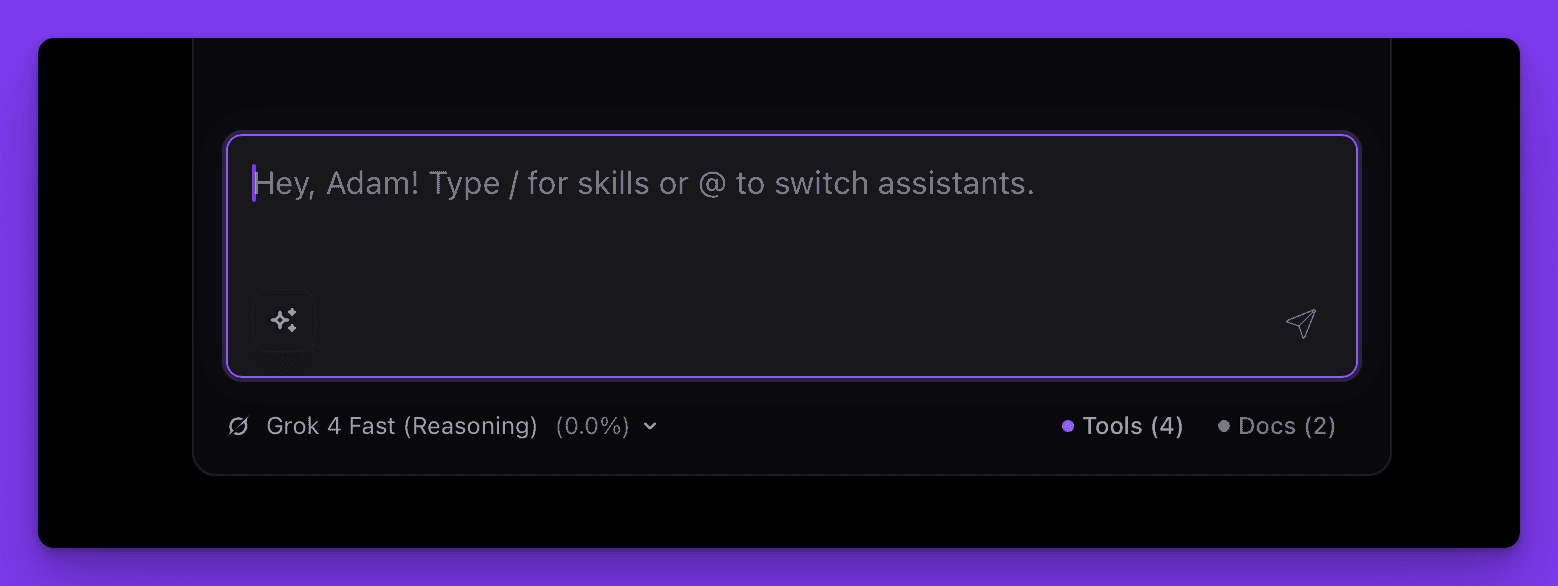
Near the main prompt input, you'll notice information about the currently active model. You can switch it by pressing Command + M and navigating with the arrows over the available models. On the right, there's information about the currently active provider and the available token limit for the current conversation. If you go beyond that limit, your requests will be rejected because of the model's limitations.
It's recommended to keep threads short because each time you send a message, the entire conversation is sent to the language model, and you pay for all those tokens. Also, the model's performance gets worse when you provide it with too much information at once.
Files
The Alice app lets you upload images (PNG, GIF, JPEG) and files (TXT, MD, CSV, and PDF) that are no bigger than 10MB and contain no more than 500,000 characters. Be cautious, though, because if you want to work with bigger files but your active model has low input token limits, the request will fail.
Uploaded files and images are represented as below, so it's either an icon of the file type or preview of the image.
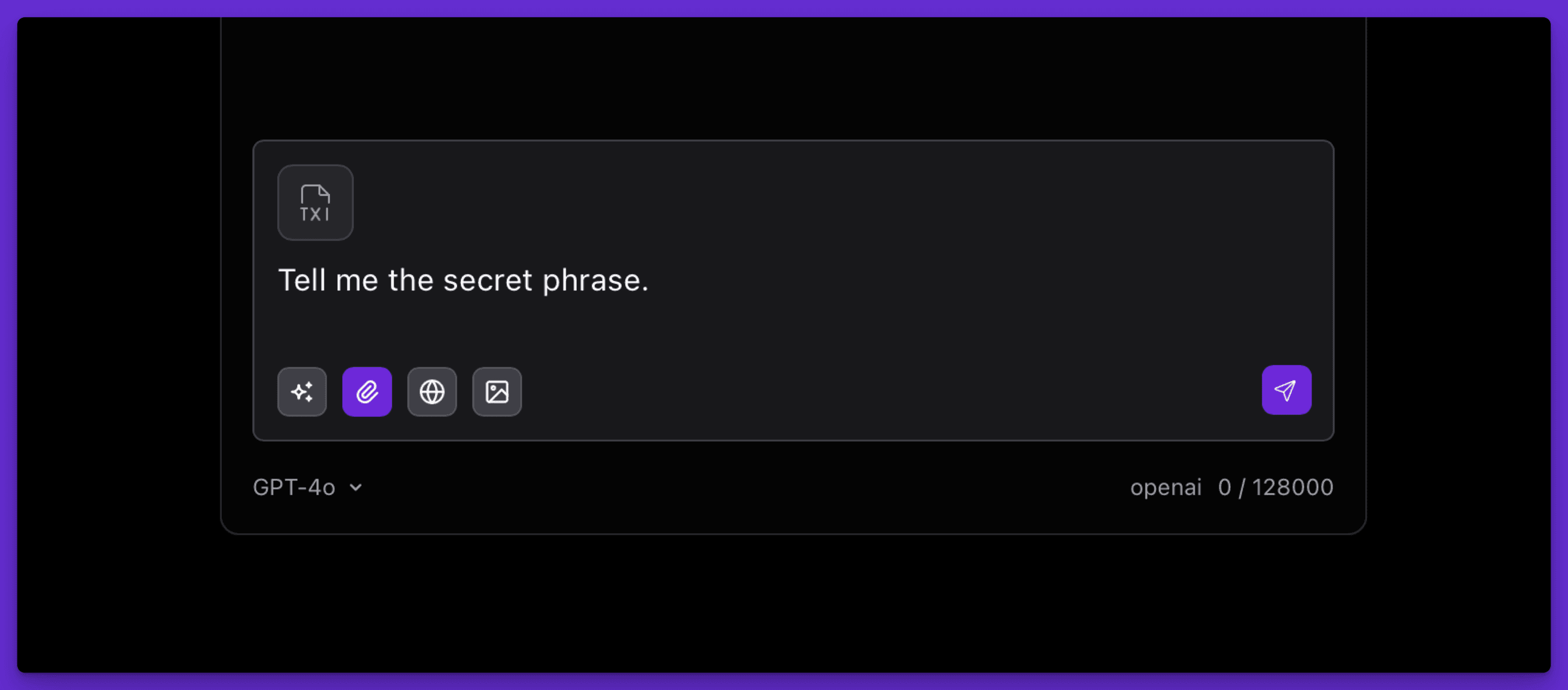
Files that are waiting in the queue will be added to the message you send. So, for example, the contents of a text file will be added to the end of your message, and the active assistant will be able to read it.
More documents
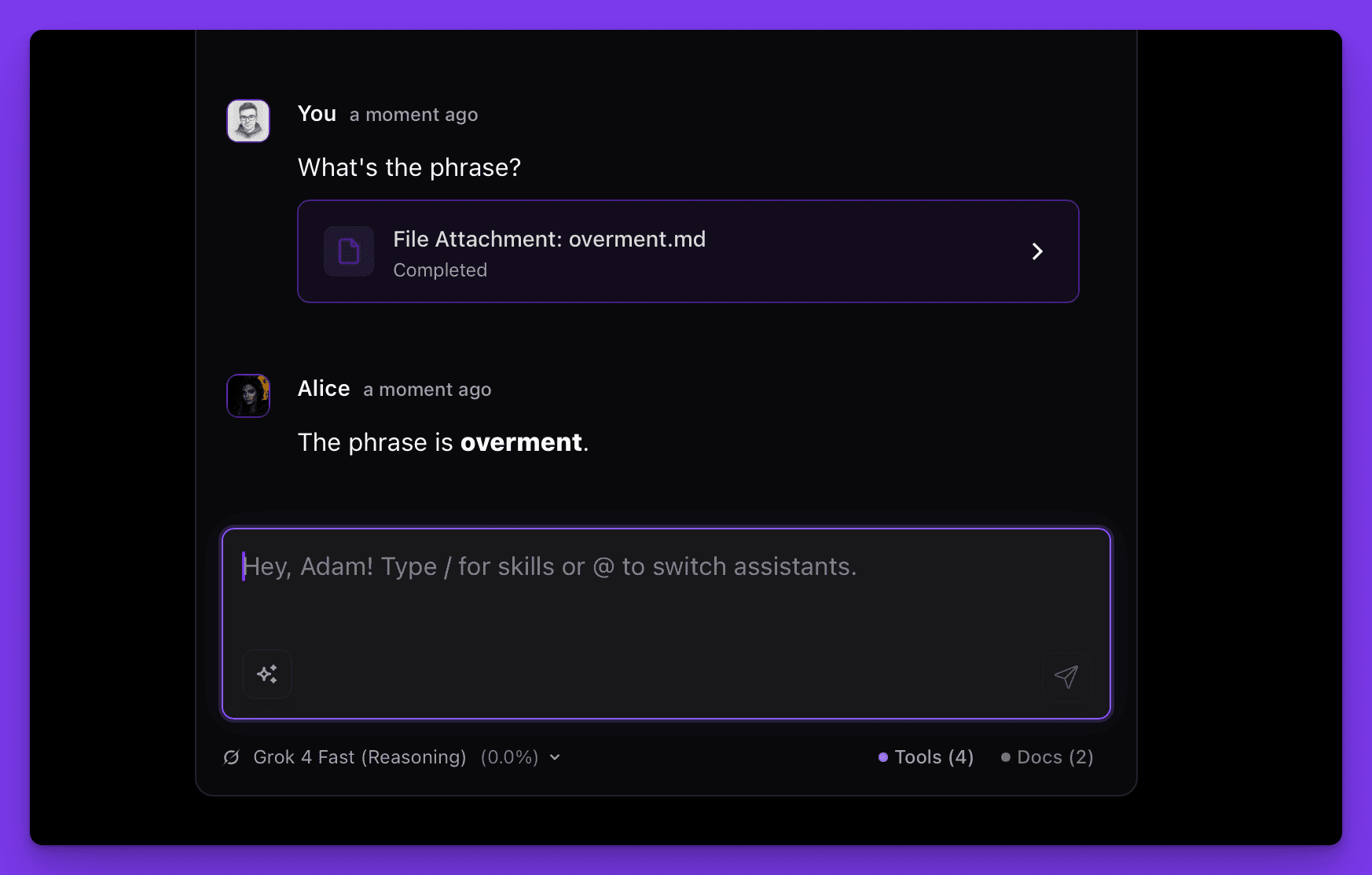
Alice allows you to add documents and bring them to conversation. They're in the bottom right corner of the app. Remember that you need both documents and specific file enabled. In the conversation, Alice will try to recall the documents in the context, but if you want to make sure she specifically loads the file you want, just ask her e.g. "read seo guidelines". She will then notify you that the whole file has been imported to the context and you can freely work with it.

Memory
Once you enable memory mode (book icon or ⌘⇧M) you can ask Alice specifically to remember something. She will prompt you with the memory dialog and you can confirm or modify. If this feature is turned on, she will recall things from memory if needed in the conversation.

Web Search
Once you enable Web Search Mode ⌘o model will get the newest information from the internet. This feature can depend on a model (model has to have 🌐 icon next to it on the list to perfom native web search) or you can override it with Firecrawl service available throughout the model. Those settings are available when accessing Assistant settings, in Web Search Settings:

Create image mode
This mode allows for creating or editing images with Alice. Once enabled (⌘i) prompt that you put in conversation will be turned into image. In Assistants settings you can decide, what model will be used to generate images. Once you choose the model, make sure that you have this models API key provided in the settings. Within Alice Pro plan we currently support Nano Banana model without the need to provide keys:

Dictation (Voice) mode
You can click on the mic Icon to use dictation in Alice. In order to configure this feature, make sure you:
Go to general Settings -> Audio settings and select the right input device
Make sure you have OpenAI key set in general Settings as this is the only way voice dictation works currently (it's not working with models within Subscription for now)

Support mode
Whenever you need help, switch to support mode and ask questions. In this mode Alice has the context of your settings and assistants so might help you better.
Key takeaways
The Alice app lets you interact with different language models. How an assistant responds depends on two things: the model itself and the system prompt of the assistant you're using. You can change the system prompt in the assistant's settings.
Stay aware that many limitations and the general quality of the conversation depend on the model you're using and the active prompt. The more you understand how Large Language Models work, the better you'll be at working with the Alice app.
"Personalized ChatGPT" is a good way to describe what the Alice app is at its core. At first glance, it looks like any other chat app, but the magic happens when you switch between assistants and activate their skills, called "Skills". But let's start from the beginning.
Basics
Sending a message provides a clear, generated answer. However, when you send a message, Alice builds context from the active agent's system instructions, tools, and enabled skills. Based on this context, the currently active model generates a result. When you send another message, the process restarts, so the way the model responds may change between turns. You can even change the model you are working with.
Also for the first message, an additional request will be made to provide the name of the conversation as it appears in the chat history. To start a new chat you can press Command + N (or Control + N on Windows) or by click the New Chat button.
All your conversations are stored locally on your device until you choose to delete them. You can access them through the History panel by pressing Command + Shift + H (or Control + Shift + H). If you wish, you can pin specific threads to the top of the list. You can also search through threads, including both titles and their content, using the available search box.
WARNING: If you decide to remove a conversation, it will be permanently deleted, and neither I, Greg, nor Adam will be able to restore it.
Near the main prompt input, you'll notice information about the currently active model. You can switch it by pressing Command + M and navigating with the arrows over the available models. On the right, there's information about the currently active provider and the available token limit for the current conversation. If you go beyond that limit, your requests will be rejected because of the model's limitations.
It's recommended to keep threads short because each time you send a message, the entire conversation is sent to the language model, and you pay for all those tokens. Also, the model's performance gets worse when you provide it with too much information at once.
Files
The Alice app lets you upload images (PNG, GIF, JPEG) and files (TXT, MD, CSV, and PDF) that are no bigger than 10MB and contain no more than 500,000 characters. Be cautious, though, because if you want to work with bigger files but your active model has low input token limits, the request will fail.
Uploaded files and images are represented as below, so it's either an icon of the file type or preview of the image.
Files that are waiting in the queue will be added to the message you send. So, for example, the contents of a text file will be added to the end of your message, and the active assistant will be able to read it.
More documents
Alice allows you to add documents and bring them to conversation. They're in the bottom right corner of the app. Remember that you need both documents and specific file enabled. In the conversation, Alice will try to recall the documents in the context, but if you want to make sure she specifically loads the file you want, just ask her e.g. "read seo guidelines". She will then notify you that the whole file has been imported to the context and you can freely work with it.
Memory
Once you enable memory mode (book icon or ⌘⇧M) you can ask Alice specifically to remember something. She will prompt you with the memory dialog and you can confirm or modify. If this feature is turned on, she will recall things from memory if needed in the conversation.
Web Search
Once you enable Web Search Mode ⌘o model will get the newest information from the internet. This feature can depend on a model (model has to have 🌐 icon next to it on the list to perfom native web search) or you can override it with Firecrawl service available throughout the model. Those settings are available when accessing Assistant settings, in Web Search Settings:
Create image mode
This mode allows for creating or editing images with Alice. Once enabled (⌘i) prompt that you put in conversation will be turned into image. In Assistants settings you can decide, what model will be used to generate images. Once you choose the model, make sure that you have this models API key provided in the settings. Within Alice Pro plan we currently support Nano Banana model without the need to provide keys:
Dictation (Voice) mode
You can click on the mic Icon to use dictation in Alice. In order to configure this feature, make sure you:
Go to general Settings -> Audio settings and select the right input device
Make sure you have OpenAI key set in general Settings as this is the only way voice dictation works currently (it's not working with models within Subscription for now)
Support mode
Whenever you need help, switch to support mode and ask questions. In this mode Alice has the context of your settings and assistants so might help you better.
Key takeaways
The Alice app lets you interact with different language models. How an assistant responds depends on two things: the model itself and the system prompt of the assistant you're using. You can change the system prompt in the assistant's settings.
Stay aware that many limitations and the general quality of the conversation depend on the model you're using and the active prompt. The more you understand how Large Language Models work, the better you'll be at working with the Alice app.
Getting Started 👋
Chatting with Alice
At first glance, chatting in the Alice app is simple and works the same way as ChatGPT, Gemini, or Claude. However, the reality is much more interesting.
"Personalized ChatGPT" is a good way to describe what the Alice app is at its core. At first glance, it looks like any other chat app, but the magic happens when you switch between assistants and activate their skills, called "Skills". But let's start from the beginning.
Basics
Sending a message provides a clear, generated answer. However, when you send a message, Alice builds context from the active agent's system instructions, tools, and enabled skills. Based on this context, the currently active model generates a result. When you send another message, the process restarts, so the way the model responds may change between turns. You can even change the model you are working with.
Also for the first message, an additional request will be made to provide the name of the conversation as it appears in the chat history. To start a new chat you can press Command + N (or Control + N on Windows) or by click the New Chat button.
All your conversations are stored locally on your device until you choose to delete them. You can access them through the History panel by pressing Command + Shift + H (or Control + Shift + H). If you wish, you can pin specific threads to the top of the list. You can also search through threads, including both titles and their content, using the available search box.
WARNING: If you decide to remove a conversation, it will be permanently deleted, and neither I, Greg, nor Adam will be able to restore it.
Near the main prompt input, you'll notice information about the currently active model. You can switch it by pressing Command + M and navigating with the arrows over the available models. On the right, there's information about the currently active provider and the available token limit for the current conversation. If you go beyond that limit, your requests will be rejected because of the model's limitations.
It's recommended to keep threads short because each time you send a message, the entire conversation is sent to the language model, and you pay for all those tokens. Also, the model's performance gets worse when you provide it with too much information at once.
Files
The Alice app lets you upload images (PNG, GIF, JPEG) and files (TXT, MD, CSV, and PDF) that are no bigger than 10MB and contain no more than 500,000 characters. Be cautious, though, because if you want to work with bigger files but your active model has low input token limits, the request will fail.
Uploaded files and images are represented as below, so it's either an icon of the file type or preview of the image.
Files that are waiting in the queue will be added to the message you send. So, for example, the contents of a text file will be added to the end of your message, and the active assistant will be able to read it.
More documents
Alice allows you to add documents and bring them to conversation. They're in the bottom right corner of the app. Remember that you need both documents and specific file enabled. In the conversation, Alice will try to recall the documents in the context, but if you want to make sure she specifically loads the file you want, just ask her e.g. "read seo guidelines". She will then notify you that the whole file has been imported to the context and you can freely work with it.
Memory
Once you enable memory mode (book icon or ⌘⇧M) you can ask Alice specifically to remember something. She will prompt you with the memory dialog and you can confirm or modify. If this feature is turned on, she will recall things from memory if needed in the conversation.
Web Search
Once you enable Web Search Mode ⌘o model will get the newest information from the internet. This feature can depend on a model (model has to have 🌐 icon next to it on the list to perfom native web search) or you can override it with Firecrawl service available throughout the model. Those settings are available when accessing Assistant settings, in Web Search Settings:
Create image mode
This mode allows for creating or editing images with Alice. Once enabled (⌘i) prompt that you put in conversation will be turned into image. In Assistants settings you can decide, what model will be used to generate images. Once you choose the model, make sure that you have this models API key provided in the settings. Within Alice Pro plan we currently support Nano Banana model without the need to provide keys:
Dictation (Voice) mode
You can click on the mic Icon to use dictation in Alice. In order to configure this feature, make sure you:
Go to general Settings -> Audio settings and select the right input device
Make sure you have OpenAI key set in general Settings as this is the only way voice dictation works currently (it's not working with models within Subscription for now)
Support mode
Whenever you need help, switch to support mode and ask questions. In this mode Alice has the context of your settings and assistants so might help you better.
Key takeaways
The Alice app lets you interact with different language models. How an assistant responds depends on two things: the model itself and the system prompt of the assistant you're using. You can change the system prompt in the assistant's settings.
Stay aware that many limitations and the general quality of the conversation depend on the model you're using and the active prompt. The more you understand how Large Language Models work, the better you'll be at working with the Alice app.